1. Why Speed Matters in 2026
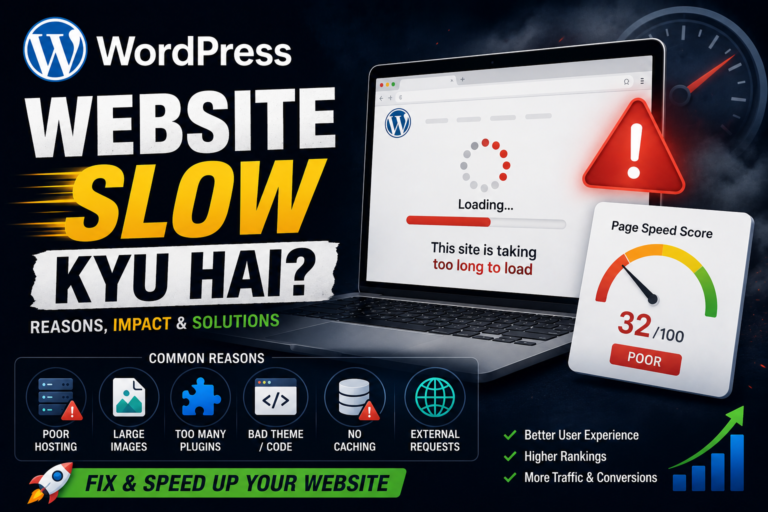
Google officially uses Core Web Vitals as a ranking factor. A slow website doesn't just frustrate users — it directly reduces your position in search results and your AdSense earnings.
- → 53% of mobile users leave
- → Google ranks you lower
- → AdSense RPM drops significantly
- → Poor Core Web Vitals score
- → Better user retention
- → Higher Google rankings
- → More ad impressions = more revenue
- → Passes Core Web Vitals
2. How to Measure Your Site Speed First
Before optimizing anything, measure first. Use these three free tools:
- Google PageSpeed Insights — pagespeed.web.dev — shows your Core Web Vitals score
- GTmetrix — gtmetrix.com — shows waterfall chart of every request
- WebPageTest — webpagetest.org — advanced testing from different global locations
Pro Tip: Always test your homepage AND a typical blog post separately. Blog posts with heavy images often load much slower than the homepage.
🔍 Quick Speed Checklist
Enter your site URL and see which areas to check first:
Areas to review for :
3. Choose the Right Hosting
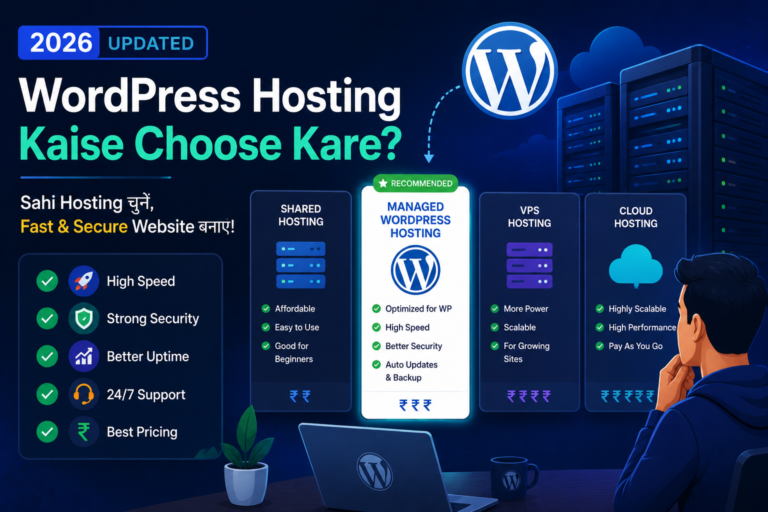
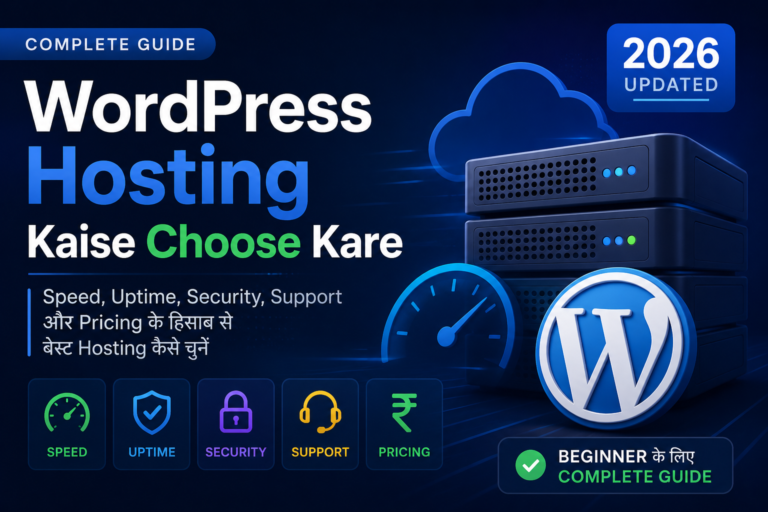
Your hosting is the foundation of your site's speed. No amount of optimization can fix bad hosting. For WordPress in 2026, here's what matters:
| Hosting Type | Speed | Best For | Cost |
|---|---|---|---|
| Shared Hosting | 🐢 Slow | Absolute beginners only | Cheapest |
| LiteSpeed Hosting | ⚡ Fast | Bloggers & small sites | Affordable |
| Managed WordPress | 🚀 Very Fast | Growing sites | Premium |
| VPS / Cloud | 🚀🚀 Fastest | High traffic sites | Higher |
Recommendation: For GrowWP-style tutorial sites, a LiteSpeed-based host (like Hostinger or Namecheap) with LiteSpeed Cache plugin gives the best performance-to-cost ratio. LiteSpeed handles caching at the server level — much faster than PHP-based caching.
4. Enable Caching
WordPress is PHP-based — every page visit runs database queries and builds the HTML dynamically. Caching saves a pre-built version of the page so the server skips all that work on repeat visits.
Best free caching plugins:
- LiteSpeed Cache — best if your host uses LiteSpeed server
- W3 Total Cache — works on any host, more configuration options
- WP Super Cache — simplest setup, good for beginners
In LiteSpeed Cache, enable these settings under Cache → General:
# Recommended LiteSpeed Cache settings
Enable Cache          → ON
Cache Logged-in Users → OFF
Cache commenters      → OFF
Cache REST API        → ON
Browser Cache         → ON  (set to 8640000 seconds = 100 days)
Object Cache          → ON  (if your host supports Memcached/Redis)
5. Optimize Images — Biggest File Size Culprit
Images are typically 60–80% of a page's total file size. Compressing them and converting to WebP format is one of the fastest wins you can get.
- Use Squoosh.app to manually compress before upload
- Use ShortPixel or Imagify plugin for automatic compression
- Always convert to WebP format — typically 30% smaller than JPG/PNG
- Set image dimensions explicitly — never upload a 4000×3000px image for a 800px wide blog
// Remove large image sizes WordPress generates (saves disk space)
function growwp_remove_image_sizes() {
  remove_image_size( '1536x1536' );
  remove_image_size( '2048x2048' );
}
add_action( 'init', 'growwp_remove_image_sizes' );

// Set maximum image upload width to 1200px automatically
function growwp_max_image_width( $dimensions ) {
  $dimensions['threshold'] = 1200;
  return $dimensions;
}
add_filter( 'big_image_size_threshold', 'growwp_max_image_width' );
6. Minify CSS & JavaScript
WordPress loads many CSS and JS files — each one is an HTTP request that adds load time. Minifying removes whitespace and comments; combining merges multiple files into one.
Most important: defer non-critical JavaScript. By default, JS blocks the browser from rendering your page until it finishes downloading. Deferring it lets the HTML load first.
// Defer all non-essential JavaScript files
function growwp_defer_scripts( $tag, $handle, $src ) {
  // Don't defer jQuery (breaks many plugins)
  if ( $handle === 'jquery' ) {
    return $tag;
  }
  return '<script defer src="' . $src . '"></script>';
}
add_filter( 'script_loader_tag', 'growwp_defer_scripts', 10, 3 );
After adding this code, test your site thoroughly. Some plugins or themes require scripts to load synchronously and will break with defer. Exclude them by adding their handle to the if condition.
7. Use a Content Delivery Network (CDN)
A CDN stores copies of your static files (images, CSS, JS) on servers around the world. When a user visits your site from Mumbai, they get the files from a Mumbai server — not from a US data center.
| CDN | Free Plan | Best For |
|---|---|---|
| Cloudflare | Yes — generous | Any site, easiest setup |
| BunnyCDN | Pay-as-you-go | High traffic, very cheap |
| Jetpack CDN | Yes — images only | Images & media only |
Cloudflare setup takes 15 minutes and is free — just change your domain's nameservers to Cloudflare's and enable "Auto Minify" and "Rocket Loader" in their dashboard.
8. Optimize Your WordPress Database
Over time, WordPress accumulates thousands of post revisions, spam comments, transients, and orphaned metadata in the database. This slows down every database query.
Use WP-Optimize plugin to automatically clean and optimize your database. Run it once a week.
// Add this line BEFORE "That's all, stop editing!" in wp-config.php

define( 'WP_POST_REVISIONS', 3 );  // Keep only last 3 revisions
define( 'AUTOSAVE_INTERVAL', 120 ); // Autosave every 2 min (default is 60s)
9. Audit and Reduce Plugin Bloat
Every active plugin adds PHP code that runs on every page load. More plugins = more server processing time. Here's how to audit them:
- Install Query Monitor plugin temporarily — it shows how many database queries each plugin triggers
- Deactivate plugins one by one and test speed after each — you'll often find one plugin causing 80% of the slowdown
- Replace multiple single-purpose plugins with one multi-purpose one where possible
Avoid these plugin types — they are notorious for slowing WordPress down: page builders with excessive CSS/JS, social sharing plugins that load external scripts, and slider/carousel plugins.
10. Lazy Load Images & iframes
Lazy loading means images only download when the user scrolls near them — instead of all at once on page load. WordPress 5.5+ adds loading="lazy" automatically on images, but you should also add it to iframes (like YouTube embeds).
// Add loading="lazy" to all iframes automatically
function growwp_lazy_load_iframes( $content ) {
  return str_replace(
    '<iframe ',
    '<iframe loading="lazy" ',
    $content
  );
}
add_filter( 'the_content', 'growwp_lazy_load_iframes' );
For YouTube embeds specifically, use a YouTube facade — show a thumbnail image first, and only load the YouTube iframe when the user clicks play. This alone can save 500KB+ on posts with video.
11. .htaccess Performance Tricks
If your site is on Apache (most shared hosts), you can add these rules to your .htaccess file to enable browser caching and Gzip compression at the server level — before any plugin even runs.
# ── Enable Gzip Compression ──
<IfModule mod_deflate.c>
  AddOutputFilterByType DEFLATE text/html text/plain text/xml
  AddOutputFilterByType DEFLATE text/css text/javascript
  AddOutputFilterByType DEFLATE application/javascript application/json
  AddOutputFilterByType DEFLATE image/svg+xml
</IfModule>

# ── Browser Caching ──
<IfModule mod_expires.c>
  ExpiresActive On
  ExpiresByType image/jpg          "access plus 1 year"
  ExpiresByType image/jpeg         "access plus 1 year"
  ExpiresByType image/png          "access plus 1 year"
  ExpiresByType image/webp         "access plus 1 year"
  ExpiresByType text/css           "access plus 1 month"
  ExpiresByType application/javascript "access plus 1 month"
  ExpiresByType text/html          "access plus 1 day"
</IfModule>

# ── Keep Connections Alive ──
<IfModule mod_headers.c>
  Header set Connection keep-alive
</IfModule>
Always backup your .htaccess file before editing it. A syntax error can take your entire site offline. Download a copy from your FTP/File Manager first.
12. Fix Core Web Vitals
Core Web Vitals are Google's three main speed metrics. Here's what each one means and how to fix it:
| Metric | What It Measures | Good Score | Main Fix |
|---|---|---|---|
| LCP Largest Contentful Paint |
How fast the main content loads | Under 2.5s | Optimize hero image, use fast hosting, enable caching |
| INP Interaction to Next Paint |
How fast the page responds to clicks | Under 200ms | Reduce JS execution time, defer non-critical scripts |
| CLS Cumulative Layout Shift |
How much the page jumps during load | Under 0.1 | Set width/height on images, avoid dynamic content above fold |
Quick CLS fix: Always add width and height attributes to your <img> tags. This lets the browser reserve space for the image before it loads, preventing layout shifts.
Quick Summary — Your Speed Optimization Checklist
- ✅ Choose a LiteSpeed or managed WordPress host
- ✅ Enable page caching with LiteSpeed Cache or W3 Total Cache
- ✅ Compress and convert all images to WebP
- ✅ Minify CSS/JS and defer non-critical JavaScript
- ✅ Set up Cloudflare CDN (free)
- ✅ Limit post revisions in wp-config.php
- ✅ Audit and remove unnecessary plugins
- ✅ Enable lazy loading for iframes
- ✅ Add Gzip compression and browser caching via .htaccess
- ✅ Fix Core Web Vitals — especially LCP and CLS
Expected result: Implementing all 12 techniques together should bring your PageSpeed score from 30–40 range to 90+ on mobile and desktop. Test after each change so you know what's making the biggest difference.
📥 Free WordPress Speed Cheatsheet (PDF)
Download our free PDF with all speed optimization settings, plugin recommendations, and the complete .htaccess snippet — ready to print and use.
Download Free PDF →