
my-secret-login, and save. Your login page moves to yourdomain.com/my-secret-login, and the default /wp-admin and /wp-login.php addresses stop showing the login form. Bookmark the new link right away, because WordPress will not remind you of it.
Every WordPress site shares the same login addresses: /wp-admin and /wp-login.php. Automated bots know this, so they try to log in at those addresses on millions of sites all day long. If you open your security or hosting logs, you will often see repeated login attempts even on a brand-new website.
Changing the login URL is a simple way to reduce that noise. In this guide I will show you how to do it with a free plugin, how to test it, and what to do if you ever forget the new address.
Why change the default login URL?
- Fewer bot attempts. Bots that only target the default address will no longer find a login form.
- Lower server load. Fewer failed login requests means less work for your hosting.
- Cleaner security logs. It is easier to spot real problems when the log is not full of automated attempts.
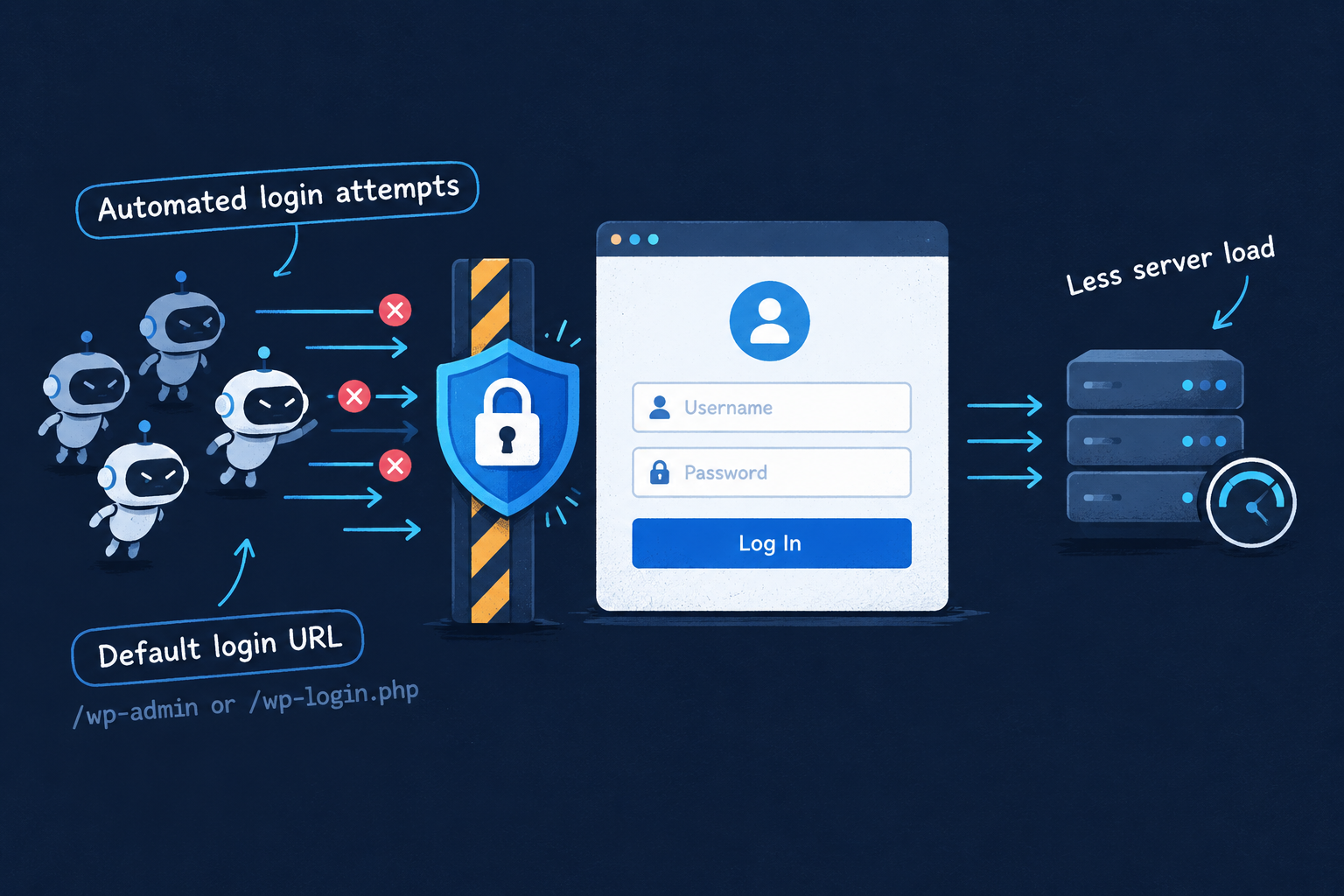
What changing the URL does and does not do
It is important to be honest about this. Hiding the login page is security through obscurity. It reduces automated attacks, but it does not fix a weak password, an outdated plugin or a vulnerable theme. A determined attacker can sometimes still discover the new address. Treat this as one layer of protection, and combine it with the measures in the "Add real login security" section below.
Step-by-step: change the login URL with WPS Hide Login
WPS Hide Login is a lightweight free plugin built for this single job, so it adds very little overhead to your site.
Step 1: Install and activate the plugin
In your dashboard go to Plugins → Add New, search for "WPS Hide Login", then click Install Now and Activate.
Step 2: Open the plugin settings
Go to Settings → WPS Hide Login. On some versions the same fields appear at the bottom of Settings → General.

Step 3: Set your new login URL
In the Login url field, type a slug that is not easy to guess. Avoid obvious words like "login", "admin" or "dashboard". Choose something unique to you, for example team-entry-2026.
Step 4: Set the redirect URL
The Redirection url field decides where visitors land when they open /wp-admin or /wp-login.php while logged out. The default is a 404 page, which works well. Click Save Changes.
Step 5: Bookmark the new address
Your login address is now https://yourdomain.com/your-new-slug. Add it to your browser bookmarks and save it in a password manager along with your credentials.
Test that the new URL works
- Open a private or incognito browser window.
- Visit
yourdomain.com/wp-admin. You should see a 404 page or your chosen redirect page, not a login form. - Visit
yourdomain.com/wp-login.php. The result should be the same. - Visit your new login URL and log in. You should reach the dashboard normally.
What if you forget the new login URL?
This is the most common problem, and it is easy to solve if you have access to your hosting panel or FTP.
- Open File Manager and go to
wp-content/plugins. - Rename the
wps-hide-loginfolder to something likewps-hide-login-off. This deactivates the plugin. - Log in at the normal
/wp-login.phpaddress. - Rename the folder back, reactivate the plugin in Plugins, and open its settings page to read or change your slug.
Caching and plugin conflicts
Most sites work smoothly after the change, but watch out for these cases.
- Caching plugins. Clear your site cache after changing the URL so old redirects are not served.
- Other security or login plugins. If you use a plugin that also customizes the login page, two plugins may fight over the same address. Use one tool for this feature.
- Hard-coded links. Emails, bookmarks or menu items that point to
/wp-login.phpwill stop working, so update them to the new address.
Add real login security
Treat the new URL as the first layer, then add the protections that actually stop attackers.
- Use a strong, unique password for every administrator account, and store it in a password manager.
- Avoid the username "admin". Create a new administrator with a different name, then delete the old account.
- Enable two-factor authentication with a security plugin that supports it.
- Limit login attempts so repeated failures get blocked temporarily.
- Keep WordPress, themes and plugins updated, since most hacked sites are compromised through outdated software.
- Keep regular backups so you can recover if something does go wrong.

Frequently asked questions
Is changing the WordPress login URL safe?
Yes, as long as you save the new address and have access to your hosting panel in case you need to deactivate the plugin. It will not harm your content or your SEO.
Will it affect my SEO?
No. Search engines do not index your login page, so moving it has no effect on your rankings.
Can I do this without a plugin?
It is possible with custom code or server rules, but it is easier to make mistakes and lock yourself out. A dedicated plugin is the safer choice for beginners.
Does my membership or WooCommerce login page change too?
Front-end account pages are separate from the admin login. Check your account pages after the change to make sure customers can still log in.