Why Is Your WordPress Site Slow? 5 Fixes That Work
Why is my WordPress site slow? Find the 5 most common causes and the fixes that actually work to make your pages load faster.
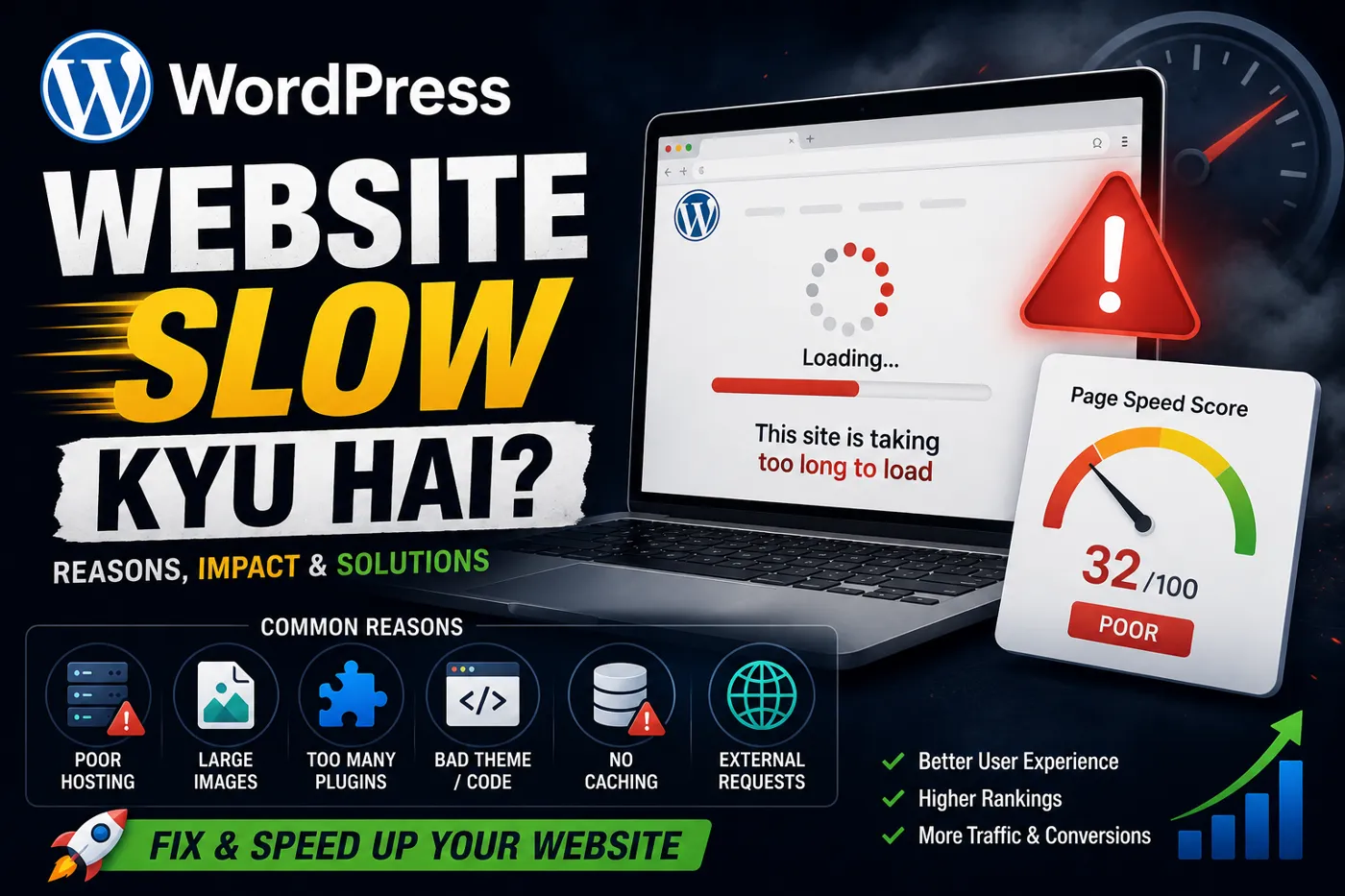
Find the real reason your WordPress site is slow, then fix it step by step: hosting, images, caching, plugins and database.
Quick Answer
The most common reasons for a slow WordPress site are weak or overloaded hosting, large unoptimized images, no caching, too many or heavy plugins, and a bulky theme or page builder. Test your site first to see which one applies to you, then fix hosting, images, caching, plugins and the database, one at a time, testing again after each change.
A slow website frustrates visitors and can hold back your search performance. The tricky part is that slowness rarely has a single cause. Usually a few small problems add up: a weak server, heavy images, no caching and a long list of plugins. When I audit a slow WordPress site, I follow the same order every time: test first, fix the biggest cause, then test again.
This guide is not a random list of tips. It is a diagnose-then-fix process, so you can spend your time on the change that will actually make a difference for your site.
Test with PageSpeed Insights or GTmetrix, check your hosting, compress images, set up one caching solution, remove plugins you do not use, and clean the database. Change one thing at a time so you know what worked.
Why WordPress Sites Get Slow
WordPress builds most pages dynamically. For each request it queries the database, runs PHP code and generates HTML. If any of those steps is slow, the whole page feels slow. These are the causes I see most often:
| Cause | Typical impact | Difficulty to fix |
|---|---|---|
| Weak shared hosting or an overloaded server | High | Medium (may need a new host) |
| Large, unoptimized images | High | Easy |
| No caching | High | Easy |
| Too many or heavy plugins | Medium | Easy |
| Heavy theme or page builder setup | Medium | Medium |
| Bloated database (revisions, spam, old data) | Low to medium | Easy |
If your hosting is the real bottleneck, smaller fixes like caching and image compression will only help a little. That is why we start with testing.
How to Test Your Speed (Diagnose First)
Before you change anything, find out what is actually slow. Random tweaks waste time and can sometimes break your site.
Run Google PageSpeed Insights
Enter your URL at PageSpeed Insights. It shows scores for mobile and desktop and lists specific problems, such as unused JavaScript or oversized images.
Study the waterfall in GTmetrix
GTmetrix shows a waterfall chart that lists every file your page loads and how long each one takes. It makes heavy images, scripts and fonts easy to spot.
Check the server response time (TTFB)
Time to First Byte (TTFB) is how long the server takes to start responding. Web.dev treats 0.8 seconds or less as good. If TTFB is consistently high across several tests, the problem is more likely your hosting than your plugins.
Test the same page two or three times, and check the mobile result as well, because results vary from run to run.
Largest Contentful Paint
How long the largest visible element, usually an image or heading, takes to load.
Good: 2.5 s or less
Cumulative Layout Shift
How much the page layout jumps around while it loads.
Good: 0.1 or less
Interaction to Next Paint
How quickly the page responds when a visitor clicks or taps.
Good: 200 ms or less
These three measurements are called Core Web Vitals. Google uses them as part of its page experience signals. They are one of many ranking factors, but they also directly affect how your site feels to real visitors.
Fix Your Hosting First
Hosting is the foundation of your site. If the server itself is slow, every other optimization has a limited effect.
- If you are on very cheap shared hosting and your traffic is growing, consider upgrading to a better plan.
- Look for hosting with fast SSD or NVMe storage, which is much faster than older hard drives.
- Servers that support server-level caching, such as LiteSpeed, usually make caching easier and faster.
- Consistently high TTFB in several tests, at different times of day, points to a hosting problem.
Not sure what to look for? Read our guide on how hosting affects your server response time.
Changing hosts can fix speed problems, but a careless migration can cause downtime. Take a full backup first, and move the site during a quiet period.
Optimize Your Images
A very common mistake is uploading a photo straight from a phone or camera. That file may be several megabytes, while the same image on your page often looks fine at a few hundred kilobytes or less. Large images are one of the biggest causes of slow pages.
Resize before you upload
If your content area is about 800 pixels wide, you do not need a 4000-pixel image. Resize it first so the browser does not download data it will never show.
Compress the image
Use an online compressor or an image optimization plugin. Compression can reduce file size a lot with little visible loss in quality.
Use a modern format such as WebP
WebP files are usually smaller than JPEG or PNG at similar quality. WordPress supports WebP uploads, and modern browsers can display them.
Use lazy loading wisely
Lazy loading delays images that are below the visible area until the visitor scrolls to them. WordPress adds it to most images by default. Do not lazy load the main image at the top of the page, because that can slow down the Largest Contentful Paint.
Set Up Caching
Without caching, WordPress rebuilds each page from scratch for every visitor. A caching setup saves a ready-made copy of the page and serves it quickly, which reduces the work your server has to do.
- Use one caching solution. If your host runs LiteSpeed, the LiteSpeed Cache plugin is a natural choice. Otherwise, free plugins such as WP Super Cache or W3 Total Cache are widely used.
- Turn on page caching first. It gives the biggest improvement with the least risk.
- Check whether compression (such as GZIP or Brotli) is already enabled by your host, and enable it if it is not.
- Consider a free CDN such as Cloudflare, which serves static files from servers closer to your visitors.
- Enable CSS and JavaScript minification carefully. It can occasionally break layouts, so test your site after switching it on.
Clean Up Plugins and Your Theme
Every plugin can add CSS, JavaScript and database queries. The more code that loads on each page, the more work the browser and server have to do.
- Delete plugins you do not use. Deactivating alone is not enough.
- Choose a lightweight theme, such as Astra or GeneratePress, instead of a heavy multipurpose theme if you do not need all its features.
- If you use a page builder, avoid unnecessary widgets and animations.
- Remove duplicate tools. Two plugins that do the same job, such as two SEO plugins, only add load and risk conflicts.
What matters most is how well each plugin is built. A few poorly coded plugins can slow a site more than ten lightweight ones. Your PageSpeed and GTmetrix reports will show which scripts cost the most time.
Clean Up the Database
Over time your database collects post revisions, spam comments and expired temporary data (transients). Cleaning it up can reduce its size and make some queries faster.
Take a backup first
Always back up your site before touching the database, so you can undo a mistake.
Remove old revisions, spam and transients
Use a trusted cleanup plugin and clean only these items. Do not delete core WordPress tables.
Limit future revisions
WordPress keeps unlimited revisions by default. To limit them, add this line to wp-config.php, above the line that says “That’s all, stop editing!”:
define( ‘WP_POST_REVISIONS’, 5 );
If you want a broader checklist of speed improvements, our complete guide to speeding up your WordPress website goes through more options.
Common Mistakes That Make Things Worse
Two caching plugins active together can conflict and cause slow or broken pages. Use one caching solution.
If you change hosting, plugins and settings all together, you cannot tell what helped and what caused a problem. Change one thing, test, then move on.
New plugins, new images and a growing database slow a site over time. Run a speed test every month or after major changes.
If the server is the bottleneck, caching and image compression will give only limited gains. Sometimes a hosting upgrade is the real fix.
Frequently Asked Questions
There is no single magic number, but a good goal is for your main content to appear within about 2.5 seconds, which is the “good” threshold for Largest Contentful Paint in Core Web Vitals.
No. Free options such as WP Super Cache, W3 Total Cache or LiteSpeed Cache (on LiteSpeed hosting) can give good results. Paid plugins mainly add convenience and extra features.
Speed is part of Google’s page experience signals, so it can help. But rankings still depend heavily on content quality, relevance and competition, so do not expect speed alone to change your position.
Check TTFB. If it is consistently high across several tests, the server is the likely cause. If TTFB looks fine but the page still loads slowly, look at heavy images, scripts, plugins and your theme.
It can be if you delete the wrong things. Take a full backup first, use a trusted plugin, and clean only revisions, spam comments and expired transients. Leave core tables alone.
Related guides: How to Optimize Images in WordPress: Resize, Compress, WebP and AVIF.