
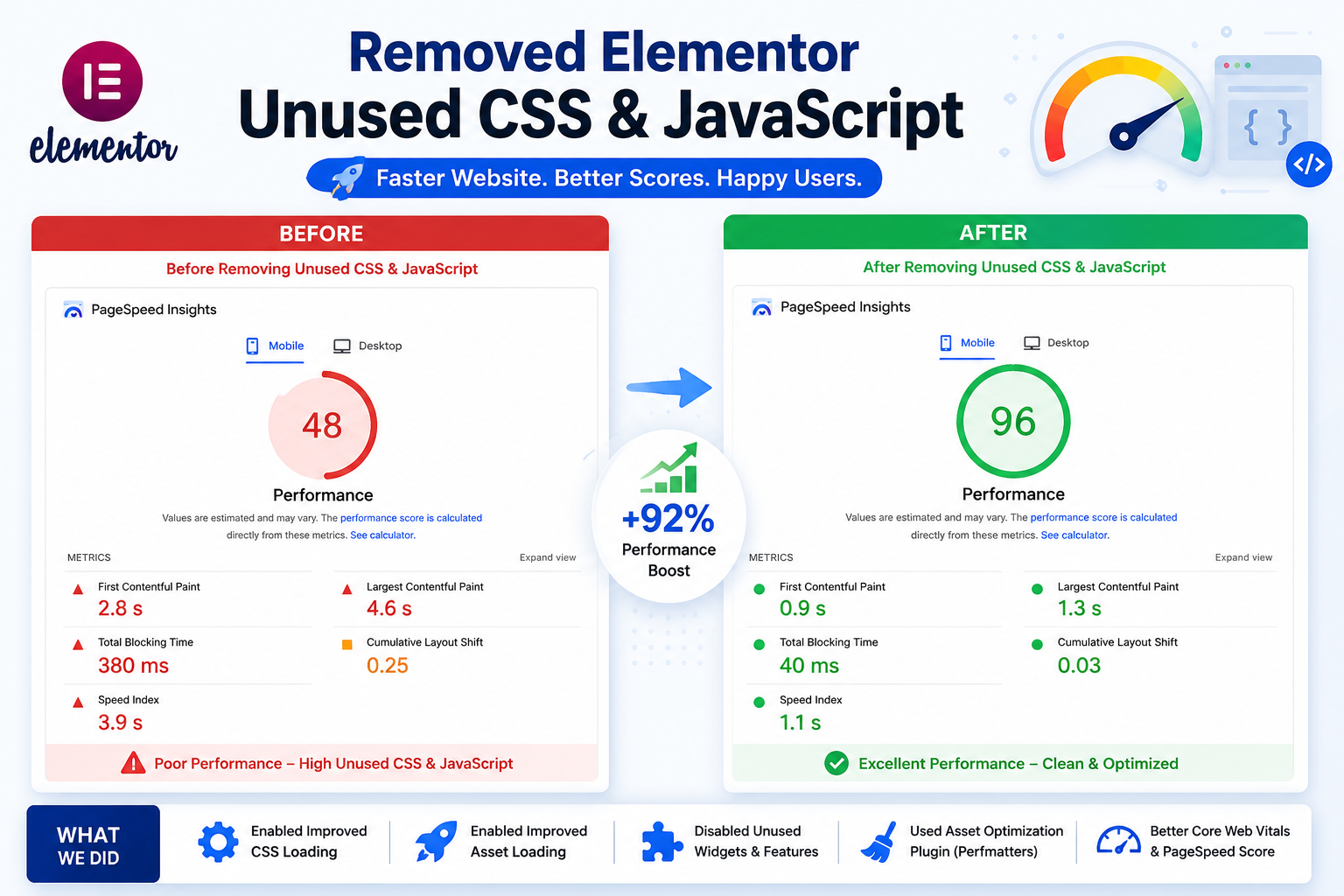
Why Unused CSS/JS Slows You Down
Elementor is built to support hundreds of widgets, animations, and layout options. To make every one of them available instantly, it loads a shared set of CSS and JavaScript files across your site — including styles and scripts for widgets you have never even dragged onto a page. On a typical landing page, this can mean 40-70% of the loaded code is never actually applied to anything visible.
Search engines and browsers measure this directly. Google PageSpeed Insights and Lighthouse both flag "Reduce unused CSS" and "Reduce unused JavaScript" as opportunities, and they tie into real ranking-relevant metrics like Largest Contentful Paint (LCP) and Total Blocking Time (TBT). Fixing this is one of the highest-leverage speed changes you can make on an Elementor site.
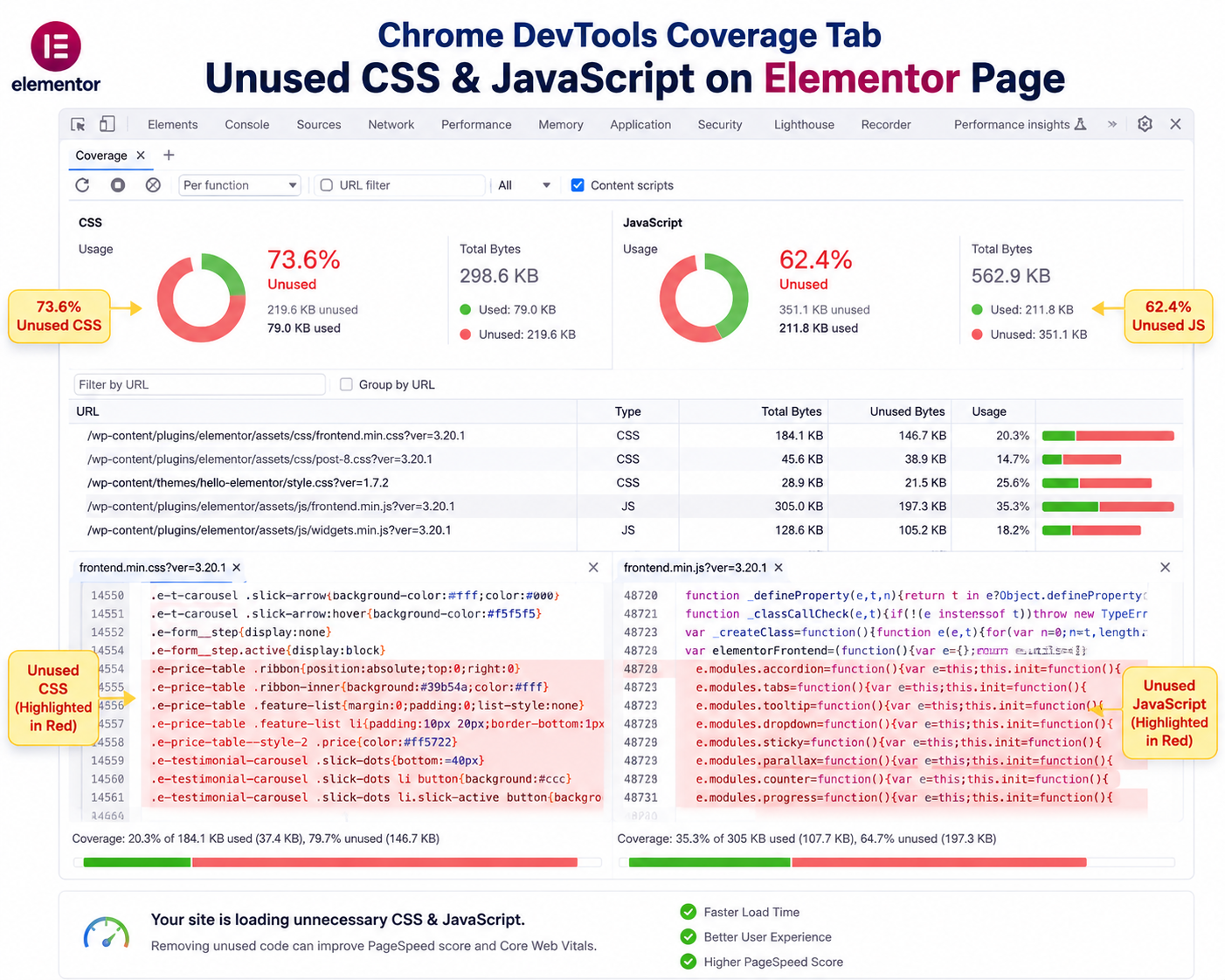
Step 1: Audit Your Page First
Before removing anything, confirm exactly how much unused code exists and where it's coming from.
Using Chrome DevTools
- Open your page, press Ctrl+Shift+I (or Cmd+Option+I on Mac)
- Go to the More Tools → Coverage panel
- Click the reload icon to record coverage
- Review each CSS/JS file — red bars show unused bytes
Using PageSpeed Insights
Run your URL through PageSpeed Insights and check the "Reduce unused CSS" and "Reduce unused JavaScript" opportunities — these list the exact files and estimated savings in kilobytes and milliseconds.
Step 2: Enable Elementor's Improved Asset Loading
Elementor has two built-in experiments designed specifically for this problem.
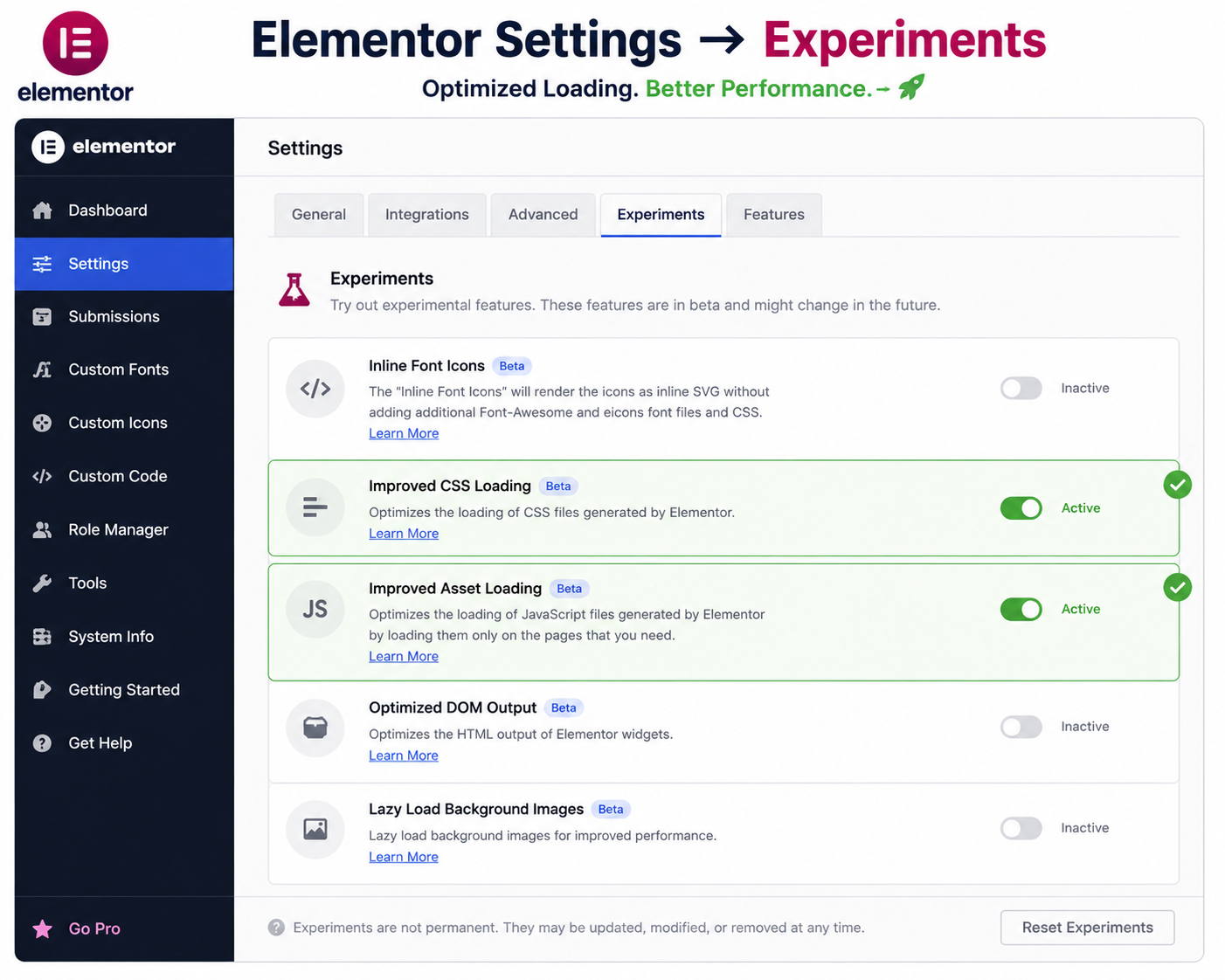
- Go to Elementor → Settings → Experiments
- Set Improved CSS Loading to Active
- Set Improved Asset Loading to Active
- Save changes, then clear your cache
These two settings tell Elementor to only enqueue the CSS and JS actually required by the widgets present on each specific page, instead of loading a single large shared file everywhere.
Step 3: Disable Widgets You Never Use
Elementor lets you turn off entire widget categories site-wide, which stops their CSS and JS from being registered at all.
- Go to Elementor → Settings → Advanced
- Under "Widgets", uncheck any widget you have confirmed you don't use anywhere (e.g., Price Table, Testimonial Carousel, Portfolio)
- Save changes
Search your existing pages first — you can use Elementor's Navigator, or a quick Ctrl+F in the page export XML — to be certain a widget isn't used before disabling it.
Step 4: Use a Dedicated Asset Optimization Plugin
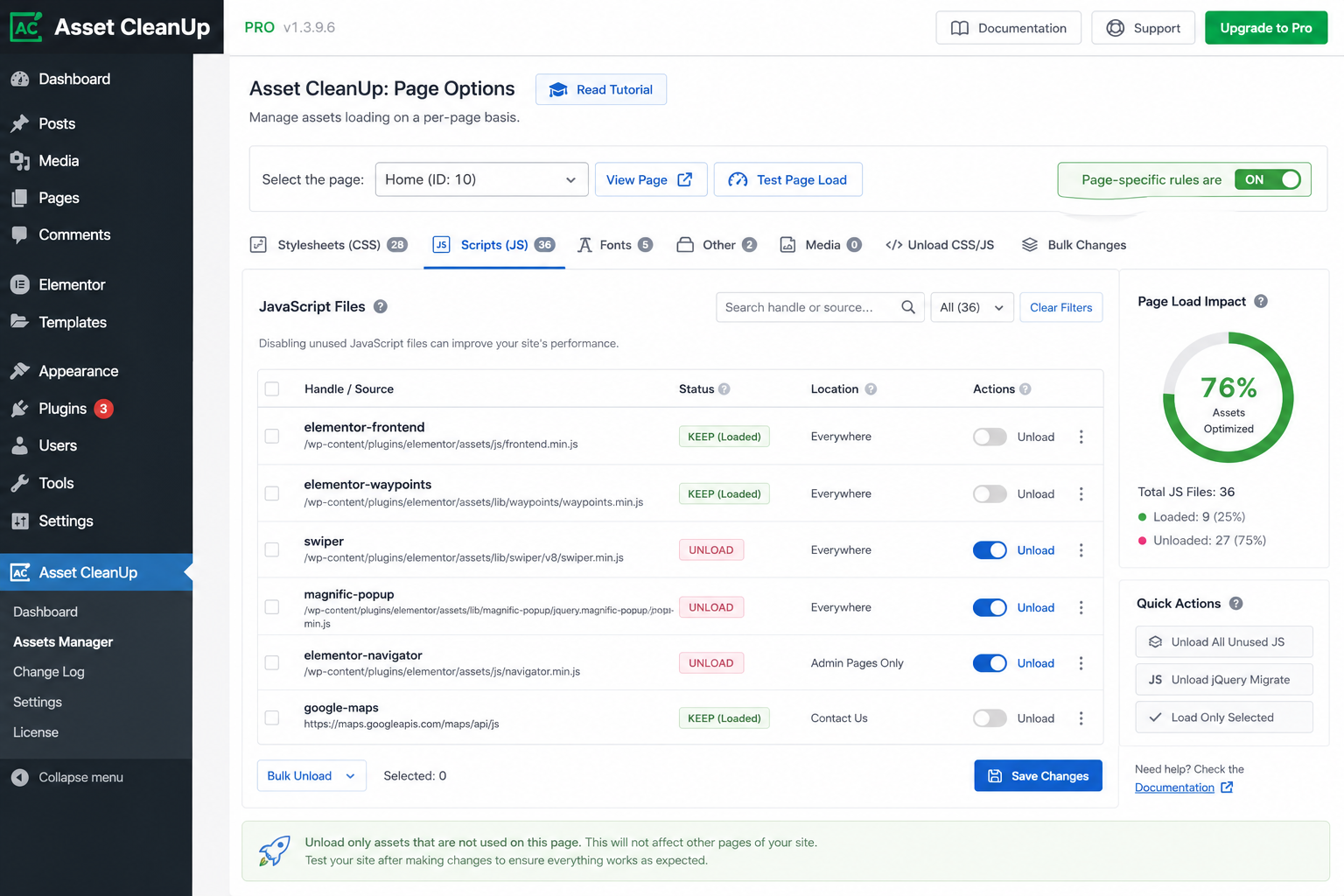
Elementor's own settings handle a large share of the problem, but plugins built for this purpose let you go file-by-file, page-by-page:
- Asset CleanUp — free, lets you disable specific CSS/JS files per post/page, shows exact file sizes
- Perfmatters — paid, includes script manager plus broader performance settings (lazy load, DNS prefetch)
- WP Rocket — paid, combines caching, minification, and unused CSS removal in one tool
Install one, visit a page you audited earlier, and disable the specific files DevTools flagged as unused for that page only — this avoids accidentally breaking other pages that do need those files.
Step 5: Combine With Caching and Minification
Removing unused code and caching solve different problems, so use both together. A caching plugin reduces server response time on repeat visits, while minification shrinks the remaining necessary CSS/JS further by stripping whitespace and comments. Neither replaces the work of actually removing unused code — they simply compound the improvement once the unused code is gone.
Step 6: Test and Validate Your Results
After completing the steps above:
- Clear all caching layers (plugin cache, browser cache, CDN cache if used)
- Re-run Chrome DevTools Coverage on the same pages
- Re-run PageSpeed Insights and compare the new "Reduce unused CSS/JS" figures against your original audit
- Manually click through key pages to confirm nothing visually broke
After: Unused CSS 45KB · Unused JS 90KB · LCP 2.1s
Common Mistakes to Avoid
- Disabling a widget that's actually used on a page you forgot to check
- Turning on Improved Asset Loading without testing popups, forms, and WooCommerce pages separately
- Using an aggressive "remove unused CSS" tool that strips styles needed for hover/active states, breaking interactions
- Not clearing cache before re-testing, resulting in false "no improvement" readings
- Stacking multiple optimization plugins that conflict with each other's script manager
Frequently Asked Questions
Conclusion
Removing Elementor's unused CSS and JavaScript is not a single toggle — it's a layered process. Start with an honest audit using Chrome DevTools, switch on Elementor's own Improved Asset Loading experiments, trim widgets you genuinely don't use, and finish with a per-page optimization plugin for the remaining files. Done together, these steps consistently cut unused code by more than half and translate into a measurably faster, better-ranking Elementor site.