Staring at your WordPress dashboard and feeling confused? Don't worry—you're not alone. As a beginner, the WordPress admin panel can look overwhelming. But here's the truth: once you understand each section, you'll be able to create, design, and optimize content like a pro. This in-depth, on-page SEO optimized tutorial will walk you through every single dashboard menu, from Posts to Settings, with actionable steps. We'll also focus on EEAT principles and AdSense approval strategies. By the end, you’ll know exactly what to do and how to do it. Let's unlock the full power of your WordPress dashboard.
After installing WordPress (via hosting or WordPress.com), open your browser and type: https://yourdomain.com/wp-admin (replace "yourdomain.com" with your actual domain). You'll see a login screen. Enter your username and password. Once logged in, you land on the main Dashboard. The left sidebar contains all management menus. The center shows "At a Glance" (post, page, comment counts), "Activity" (recent posts/comments), "Quick Draft" (save a draft quickly), and WordPress News. Pro tip: Use the "Screen Options" tab (top right) to hide/show widgets – customize your dashboard view. Now, let's explore each menu from top to bottom.
The "Posts" section is where your blog articles live. Expand the menu – you'll see: All Posts, Add New Post, Categories, and Tags. Let's break down each with real usage.
Shows a list of every blog post you've written. You can edit, delete, or view each post. Hover over any post title to see quick links (Edit, Quick Edit, Trash). From here, you can also bulk edit posts (change categories, author, etc.).
Click "Add New" to open the WordPress block editor (Gutenberg). Here's how to write your first post:
| Feature | Categories | Tags |
|---|---|---|
| Purpose | Broad topics, site structure | Specific keywords, micro-topics |
| Example | "Blogging Tips" | "WordPress dashboard tutorial" |
| SEO Tip | Use 5-10 main categories | Use 10-15 unique tags per post but avoid overuse |
All uploaded images, PDFs, videos go to Media → Library. From here you can view, edit, delete, or insert media into posts. Key SEO action: When you upload an image, fill the "Alt Text" field with descriptive keywords (e.g., "wordpress-dashboard-tutorial-settings"). Alt text improves accessibility and image SEO. You can also add captions and descriptions. To upload new media, click "Add New" and drag-and-drop files. Keep file sizes below 200KB – use free tools like TinyPNG to compress. A fast site = better AdSense experience.
Unlike posts, pages are timeless and not displayed in chronological feeds. Essential pages for any serious blog: About Me, Contact, Privacy Policy, and Disclaimer. To create: Pages → Add New. Use the block editor to add your story, contact form (via plugin), or legal text. For AdSense approval, Privacy Policy is mandatory (you can generate one via free policy generator). Also, set up a "Contact" page with your email – shows transparency. After publishing, add these pages to your navigation menu (Appearance → Menus).
Under "Comments", you approve, reply, mark as spam, or delete comments. Engaging with readers builds trust signals for EEAT. For anti-spam, install "Akismet" plugin (Plugins → Add New → search Akismet, activate with free API key). You can also manage comment settings via Settings → Discussion: disable anonymous comments, require manual approval for first-time commenters. Moderation helps keep your blog clean, making it more attractive for AdSense reviewers.
The Appearance section defines how your site looks. Breakdown:
Plugins add features like SEO, security, caching, forms, etc. Go to Plugins → Add New → search by keyword. Install and activate. DO NOT over-install – too many plugins slow your site. For beginners, install these:
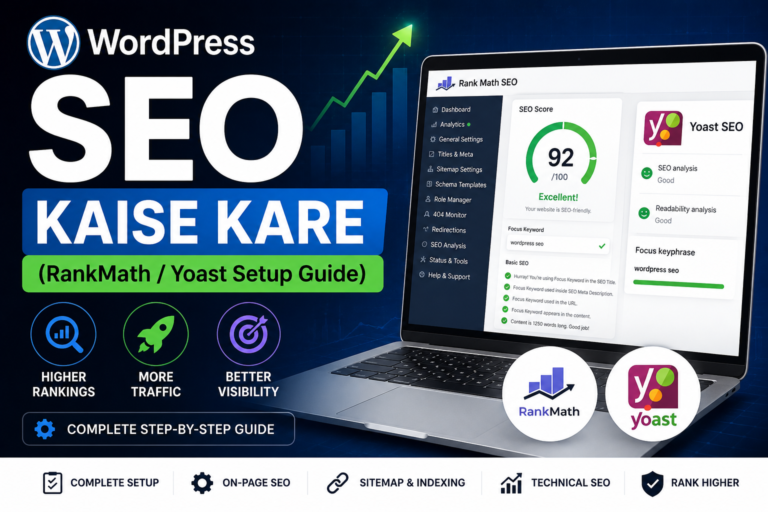
On-page SEO analysis, meta tags, XML sitemaps, schema. Crucial for rankings.
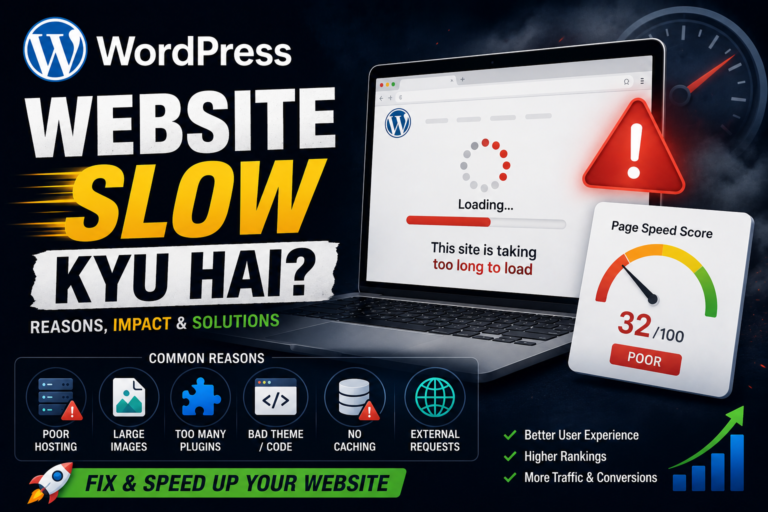
Caching plugin – improves speed and Core Web Vitals.
Blocks spam comments automatically.
Add contact forms to your Contact page.
Under Users → All Users, you see your profile. Click on your username to edit. Fill out: First Name, Last Name, Nickname, and set Display Name publicly as your real name (builds trust). Write a detailed Biographical Info – include your expertise and background. Upload a Gravatar (profile picture). These steps directly enhance EEAT – Google values real authors. For multi-author blogs, you can assign roles (Editor, Author, Contributor).
Tools → Export: allows you to export posts, pages, comments to an XML file. Good for backups. Import: use if migrating from another platform.
| Settings Tab | What to Adjust (Step-by-Step) |
|---|---|
| General | Set Site Title, Tagline, Timezone, and WordPress Address (URL). Keep consistent. |
| Writing | Default Post Category – set your main category. Nothing else needed. |
| Reading | Choose "Your homepage displays": either "Your latest posts" or a static page (like Home as front page, Posts page as Blog). If building a blog, select latest posts. |
| Discussion | Manage comment settings. I recommend: "Comment must be manually approved" for first-time commenters to avoid spam. |
| Permalinks | MOST IMPORTANT SEO SETTING: Select "Post name" (e.g., yoursite.com/sample-post/). Then click Save Changes. This creates clean, readable URLs. |
Optimizing your content for search engines starts inside the dashboard. Here's your actionable checklist:
Following these on-page steps will greatly increase your chances of ranking high and satisfying AdSense quality guidelines.
Google AdSense reviewers check your site's compliance. Use these dashboard tasks before applying:
Create About, Contact, Privacy Policy (Pages menu). Add them to your footer menu.
Write long-form, helpful articles (min 1000 words). Avoid plagiarism – produce original.
Use caching plugin and a responsive theme. Test with Google PageSpeed Insights.
Remove unnecessary clutter. Use white background, readable fonts.
Once ready, go to Settings → Reading and ensure "Search Engine Visibility" is unchecked (allow indexing). Then apply for AdSense via google.com/adsense. You'll place the ad code using a plugin like "Ad Inserter" – simple and dashboard-friendly.
Simply type yourdomain.com/wp-admin. Replace "yourdomain.com" with your actual domain name. Bookmark this URL for easy access.
If you're using WordPress.com free plan, plugins are not allowed. You'll need Business plan or switch to self-hosted WordPress.org (via hosting). This tutorial assumes .org dashboard.
Go to Settings → General → Site Language. Choose your preferred language and save. The dashboard interface will switch.
Trash stores deleted items for 30 days (you can restore). Delete Permanently removes them forever – use with caution.
Users → Add New. Fill email, username, and select role (Administrator for full control). Send notification to new user.
Yes! Go to Users → Your Profile → Admin Color Scheme. Choose from eight color palettes.
Install a backup plugin like UpdraftPlus. Schedule automatic backups to cloud storage (Google Drive). Or use Tools → Export for manual backup.
🏁 Your WordPress Dashboard Journey Starts Here – Now you know every menu, setting, and optimization inside out. The dashboard is your best friend – from creating posts, managing themes, tweaking permalinks, to preparing for AdSense. Spend a day practicing: write a test post, install a new theme, change your permalink structure. The more you explore, the more natural it becomes. Congratulations – you've moved from beginner to confident WordPress user. Happy blogging, and may your site rank high!
Explore our latest blog posts, tutorials, SEO tips and WordPress guides.