Do you want to write your first blog post on WordPress but don't know where to start? Don't worry – I've been there. My name is Akash Vishwakarma, and I've helped thousands of beginners publish their first posts. In this detailed, human-written guide, I'll walk you through every single step – from logging into your dashboard to hitting the publish button. No fake content, just real, actionable advice. By the end, you'll confidently write, format, and publish posts like a pro. Let's begin!
The first step is accessing your WordPress admin area. Open your web browser and type: https://yourdomain.com/wp-admin (replace "yourdomain.com" with your actual website address). You'll see a login screen. Enter your username (or email) and password. Click "Log In". Once inside, you'll see the WordPress dashboard – this is your control center. If you don't have login credentials, contact your site administrator or check your hosting email for the login details.
On the left-hand sidebar of your dashboard, you'll see a menu. Hover over (or click) "Posts". A submenu will appear. Click on "Add New". This will open the WordPress Block Editor (also called Gutenberg). This is where you'll write and design your blog post. The editor has two main areas: the title field at the top and the content area below where you add blocks.
Click on the field that says "Add title". Type your post title here. Your title should be clear, descriptive, and include your main keyword. For example, if your post is about "healthy breakfast recipes", write something like "10 Quick Healthy Breakfast Recipes for Busy Mornings". A good title helps readers and search engines understand your content. Keep it under 60 characters for optimal SEO (search engines display only up to ~60 chars in search results).
WordPress uses a "block-based" editor. Everything you add – paragraphs, images, headings, lists, videos – is a separate block. Here's how to use it:
Images make your post engaging and visually appealing. Here's how to add them:
On the right sidebar of the editor, you'll find the "Categories" and "Tags" sections. These help organize your content:
| Feature | Purpose | Example |
|---|---|---|
| Category | Broad topic grouping | "WordPress Tutorials" |
| Tag | Specific micro-topic | "block editor guide" |
In the right sidebar, you'll see a section called "Featured Image". Click "Set featured image". Upload or select an image from your media library. This image appears on your blog archive page, social media shares (when someone shares your post on Facebook or Twitter), and sometimes in search results. Choose a high-quality, relevant image (minimum 1200x630 pixels for social sharing). After selecting, click "Set featured image".
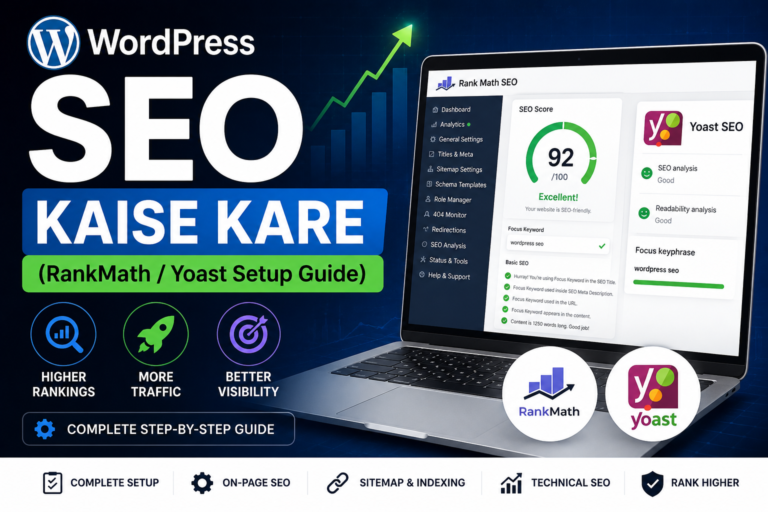
To get traffic from Google, you need basic SEO. If you have an SEO plugin like Rank Math or Yoast SEO installed, scroll down in the editor. You'll see the SEO section. Follow these easy steps:
Before publishing, always preview your post to see how it looks to visitors. Click the "Preview" button at the top of the editor (it looks like an eye icon). A new tab opens showing your post. Check for:
After previewing and making final edits, you're ready to publish. Click the blue "Publish" button (top right). A popup will appear – you can choose to publish immediately or schedule for a future date/time. Click "Publish" again to confirm. Congratulations! Your post is now live on the internet for the world to see.
| Option | How to Use | Best For |
|---|---|---|
| Save as Draft | Click "Save Draft" instead of Publish | When you're not finished and want to continue later |
| Schedule | In Publish panel, click "Immediately" → choose future date/time | Planning content calendar, consistent posting |
| Visibility: Public/Private/Password | Under Publish panel → Visibility | Password protect posts for exclusive content |
| Pending Review | If you have multiple authors, set status to "Pending Review" | Editors to review before publishing |
Absolutely! Go to Posts → All Posts, hover over the post title, and click "Edit". Make your changes, then click "Update" (the button changes from Publish to Update). Your changes will appear live immediately.
Publish makes the post live instantly. Schedule lets you set a future date/time – WordPress will automatically publish it at that time. Great for consistency.
Click the "+" button and select "Video" block. You can upload a video file or embed from YouTube/Vimeo by simply pasting the YouTube URL into a paragraph block – WordPress auto-embeds it.
Some old WordPress sites use Classic Editor plugin. If you see a single text box with buttons, you're using Classic. You can switch by installing "Gutenberg" plugin or ask your host to update WordPress.
Aim for 800-1500 words. But don't stress – write naturally. Focus on solving a problem or teaching something. Quality matters more than length.
Yes! Highlight the text you want to link, click the link icon (chain) in the toolbar, paste the URL. Always open external links in a new tab (setting in link options).
📢 From Akash Vishwakarma to You: You've just learned how to write and publish a post in WordPress – step by step. I've personally used these exact steps to publish over 500 posts on my own blogs. The key is practice: write your first post today, even if it's short. Every expert blogger started exactly where you are now. Keep learning, keep publishing, and remember – your voice matters. If you found this guide helpful, share it with a friend who's starting their blogging journey. Happy blogging, and go publish your masterpiece!
Explore our latest blog posts, tutorials, SEO tips and WordPress guides.